Free AI Image Editor Agent - Photuneer AI
Upload a photo and tell Photuneer’s AI image editor agent what to change. Remove distractions, change backgrounds, add elements, or refine the details until the photo feels right.
- Free Generation
- High Quality
- Fast Generation
- Easy to Use
An AI image editor you can talk to
Upload a photo and tell Photuneer what you want to change. Your AI agent turns your ideas into edits, works with your reference images, and lets you refine the result with follow-up requests—all in one conversation.
- Describe your idea in everyday language. Your agent handles the image prompt.
- Keep refining the previous result with simple follow-up requests.
- Use reference images to guide the subject, setting, or style.
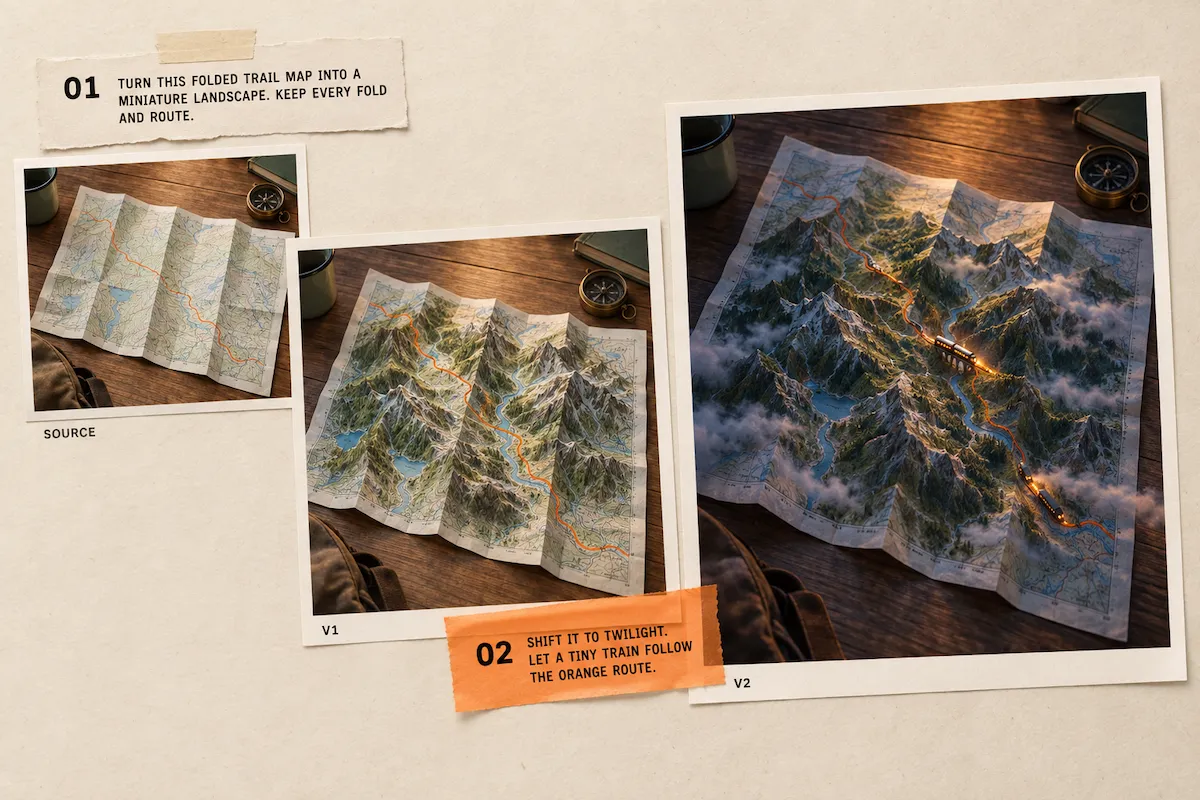
One AI photo editor, many everyday uses
See how the AI photo editor moves a rough idea toward a useful visual direction for your feed, portfolio, campaign, or product story.
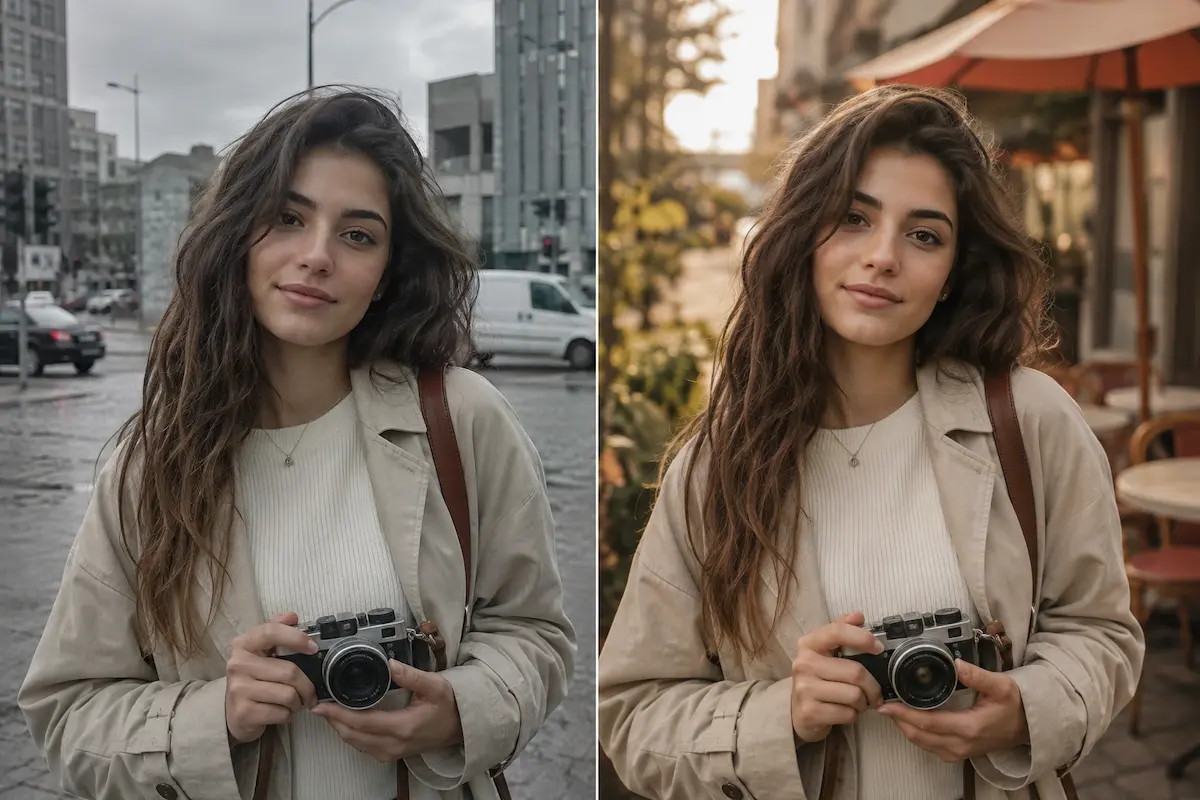
Create more directions from one photo
Use the AI image editor to turn an everyday photo into content that better fits your feed. Change the setting, mood, or composition while keeping the original idea close at hand.
Try this edit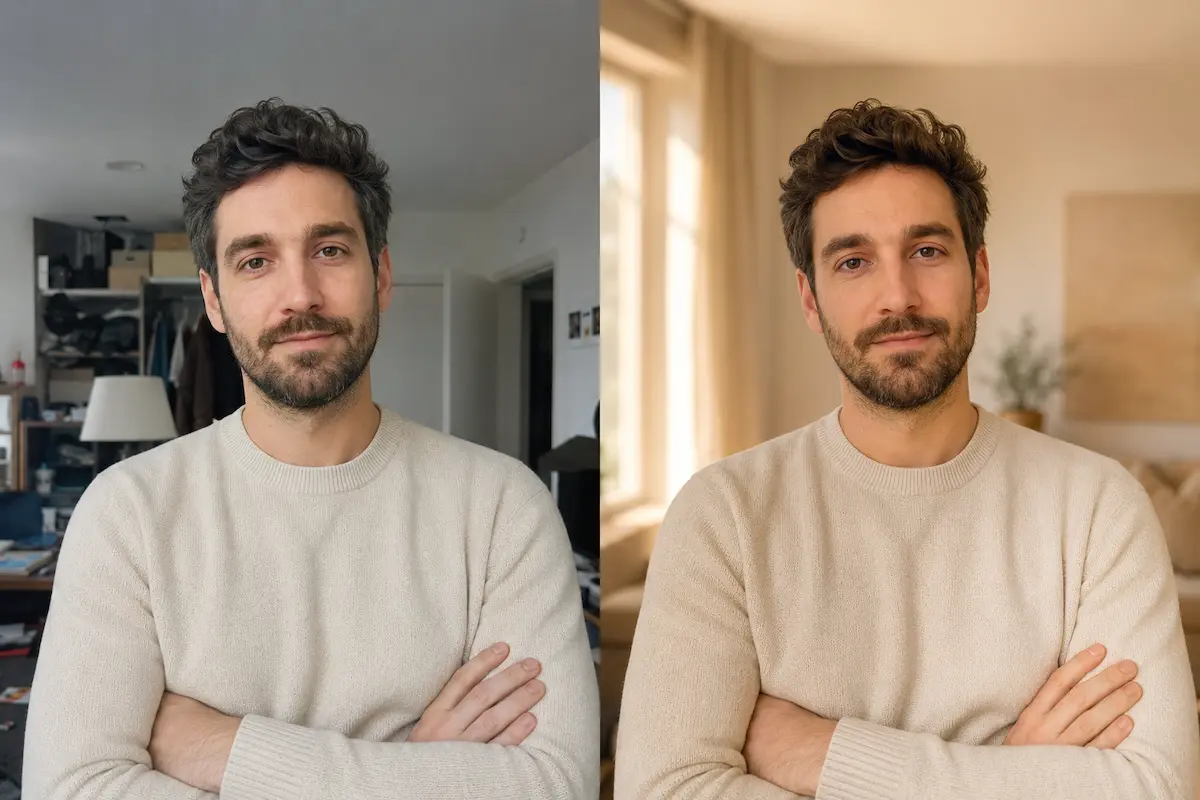
Refine a portrait without losing its character
Use the AI image editor to try out a cleaner background, a different atmosphere, or a new visual treatment without rebuilding the photo from scratch. Use the source image as the starting point for every iteration.
Try this edit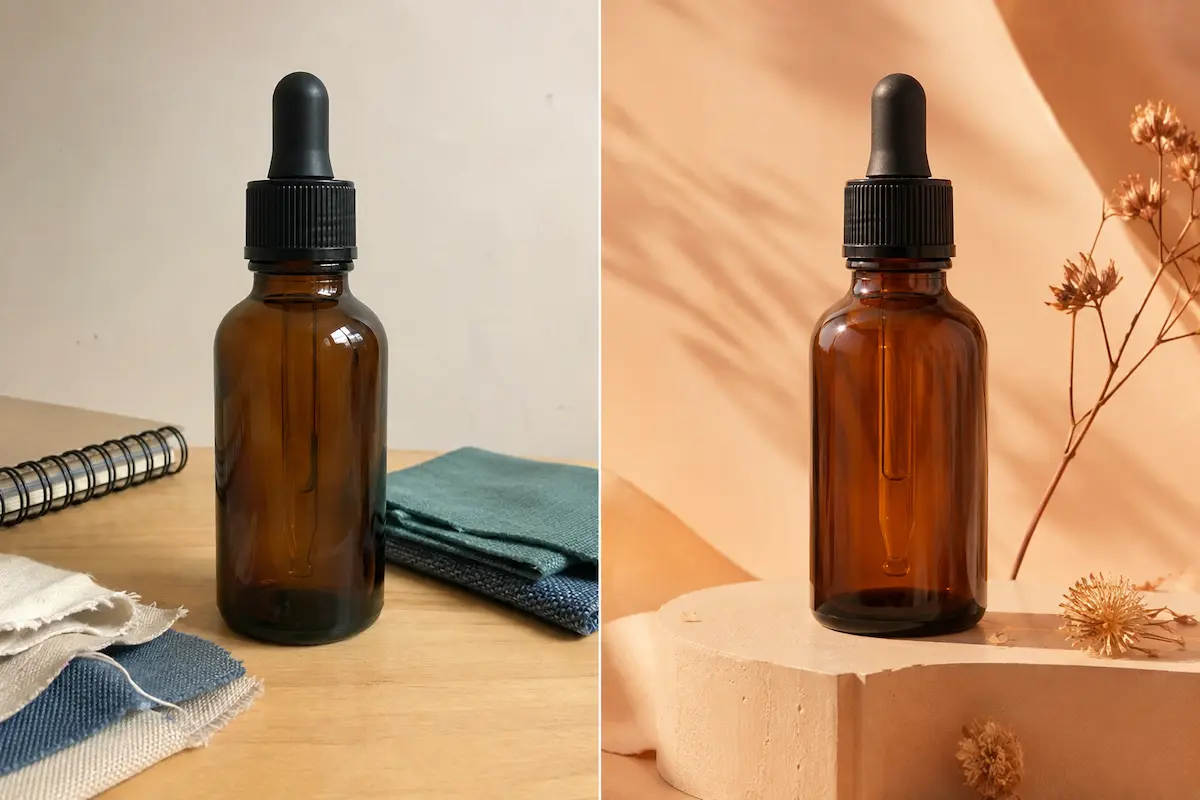
Explore campaign concepts before production
Bring references together in the AI image editor and describe the campaign mood you want before moving into final production.
Try this edit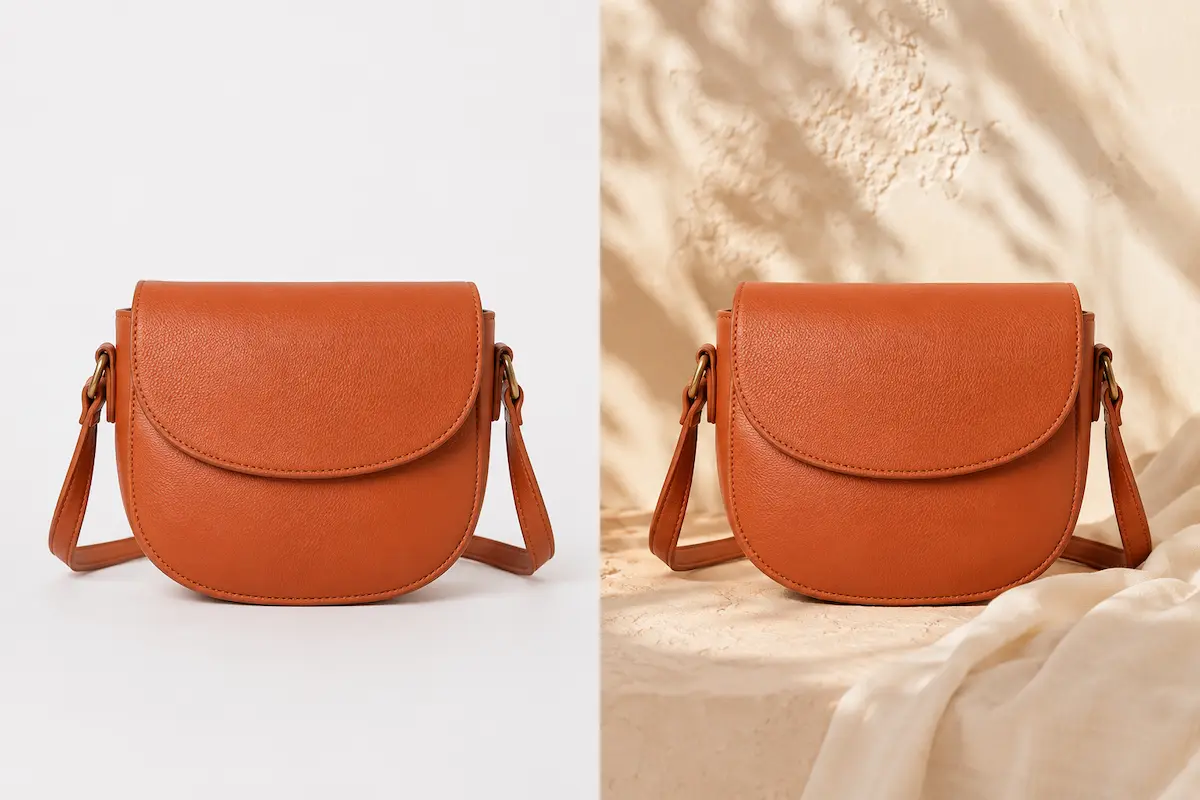
Test product imagery for different placements
Use the AI photo editor to create product-image variations for storefronts, promotions, and content planning.
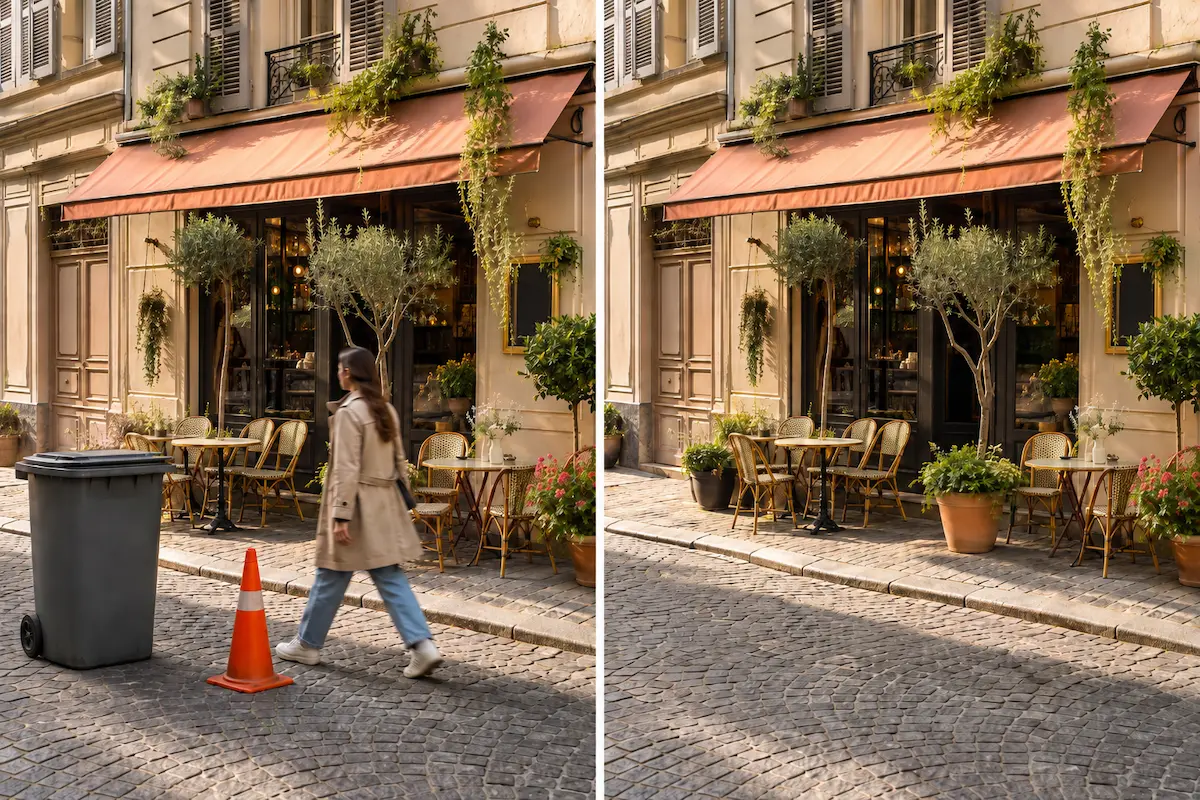
Try this editRemove unwanted objects from photos with AI
Erase photobombers, signs, clutter, and other distractions with the AI photo editor. Rescue the moment you meant to capture instead of giving up on a nearly right photo.
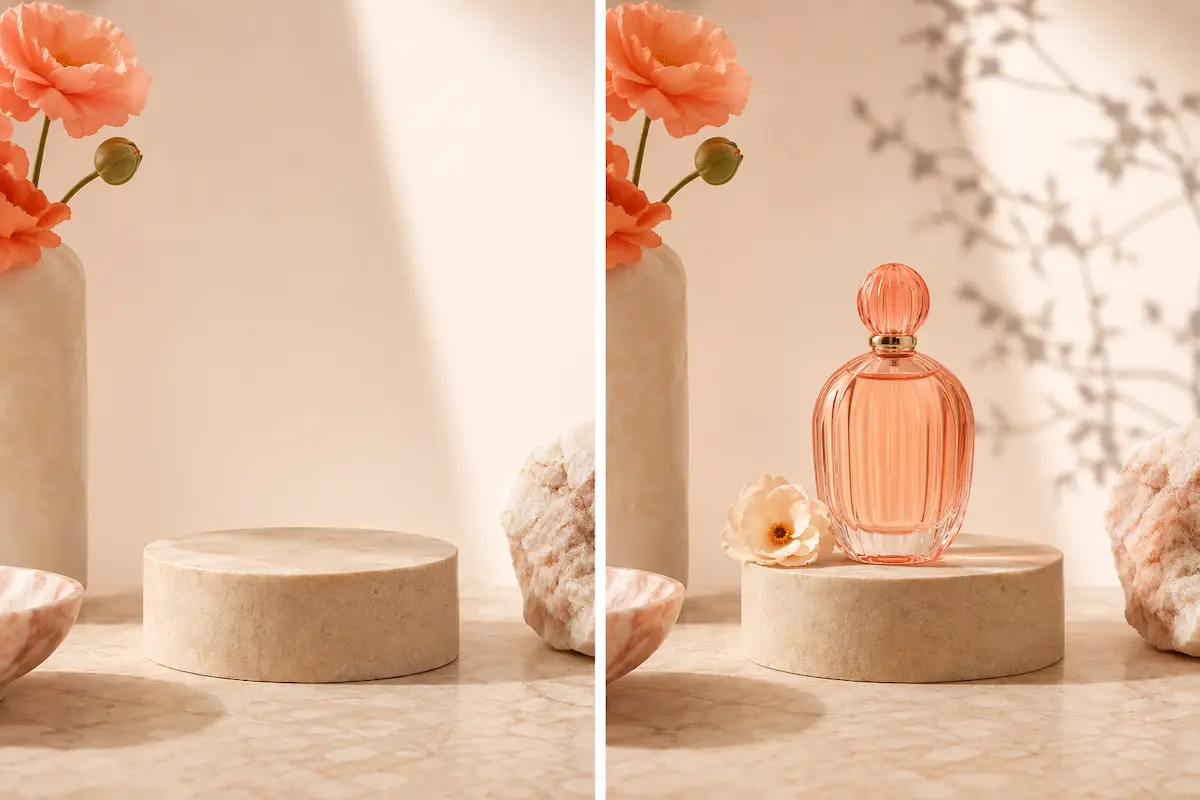
Add objects to photos with the AI image editor
Use generative fill to introduce a product, prop, detail, or fresh visual idea with a text prompt. Shape the existing image around the story you want to tell instead of arranging another shoot or rebuilding the composition by hand.
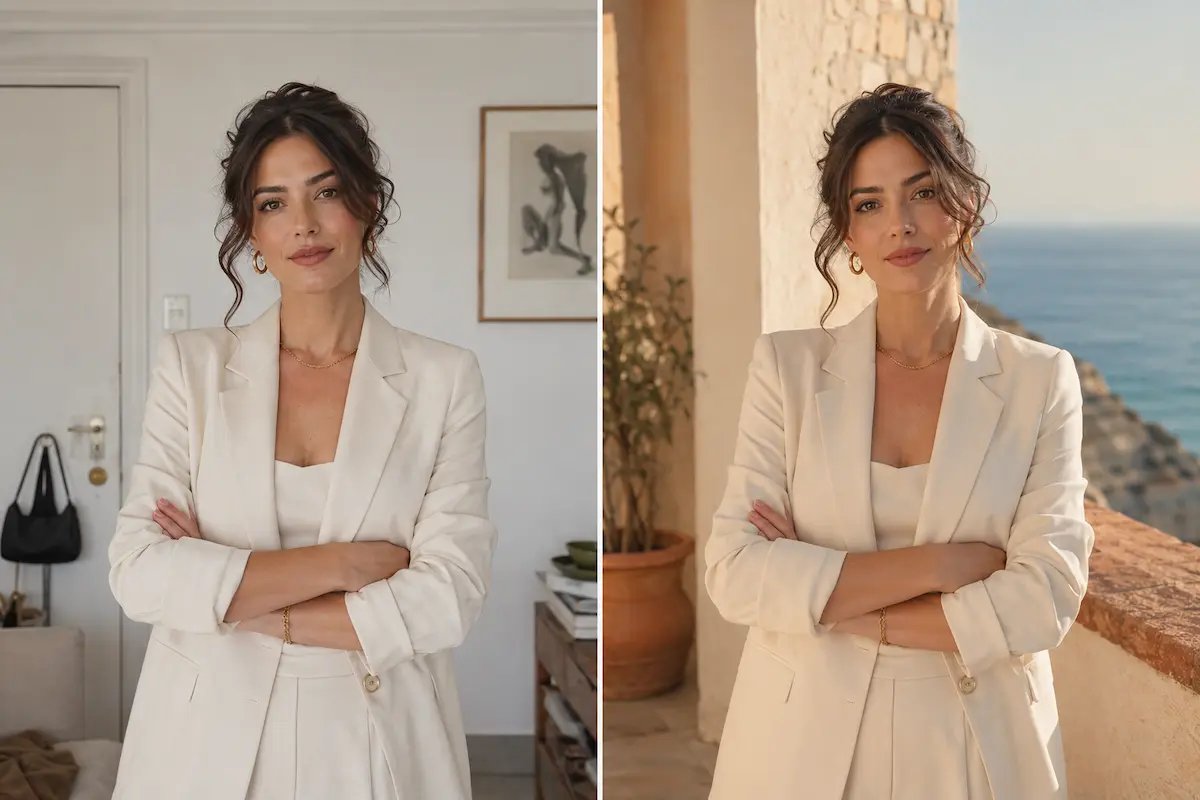
Change photo backgrounds with AI
Move a portrait, product, or everyday photo into a setting that matches the story you want to tell. The AI image editor turns one source image into a visual with a new mood, message, and purpose.
Combine reference images with AI
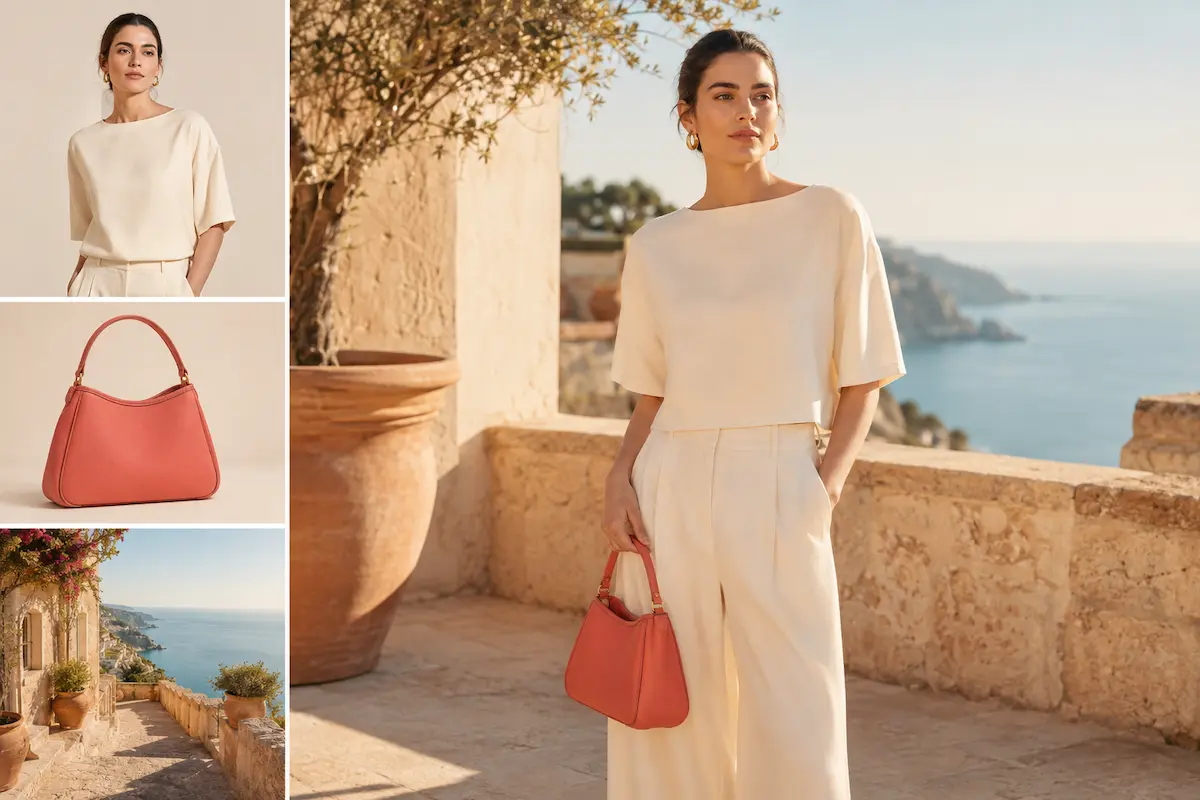
Combine images with the AI photo editor to bring a subject, product, setting, and visual style into the same composition. Explore campaign ideas before you spend time coordinating a shoot or building the finished visual by hand.
How to edit photos with AI
The AI photo editor makes it simple: upload a photo, describe the change, then refine the result in the same conversation before you download it.
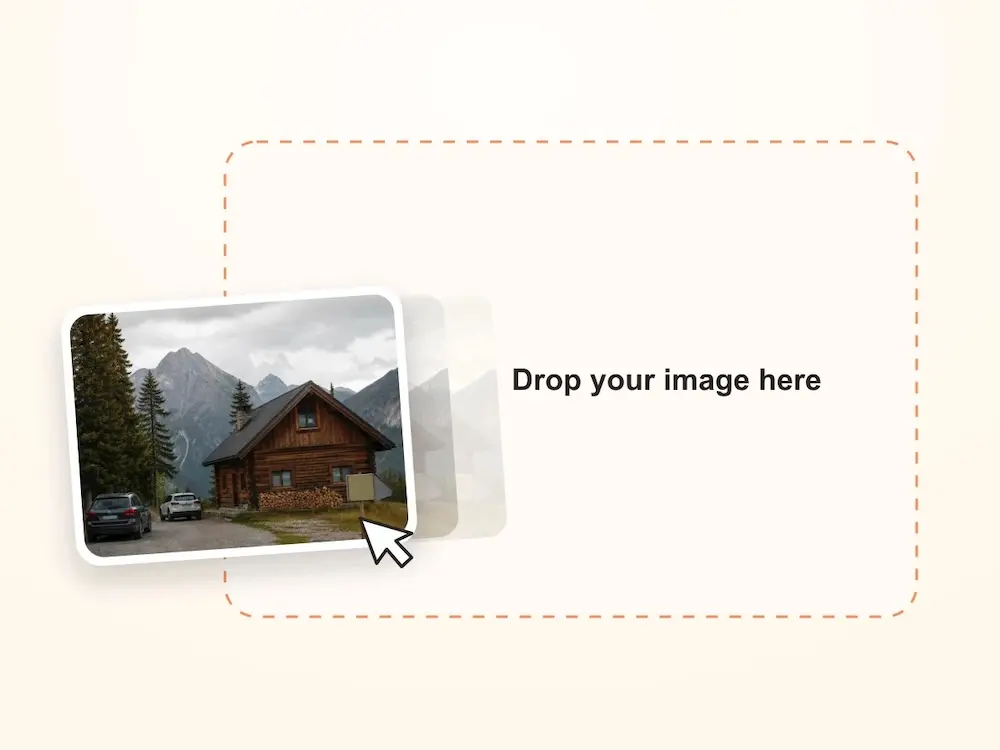
Upload your image
Choose the photo you want to edit and upload it to the AI photo editor.
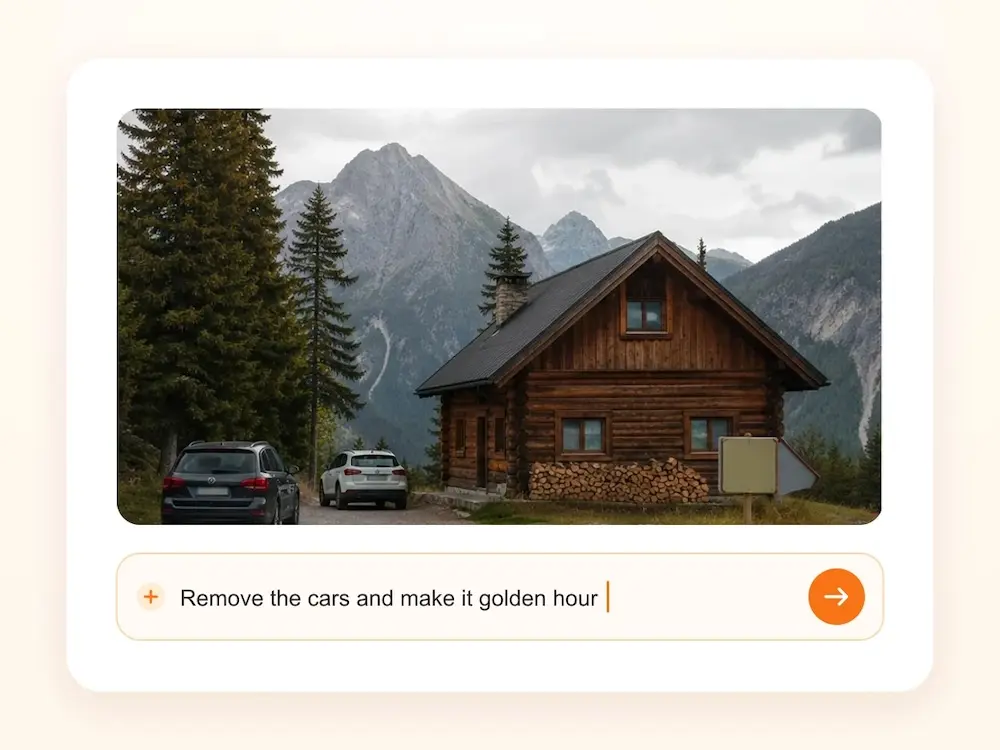
Describe the change
Tell the AI image editor what you want to change, such as replacing a background, removing a distraction, or trying a new visual style.
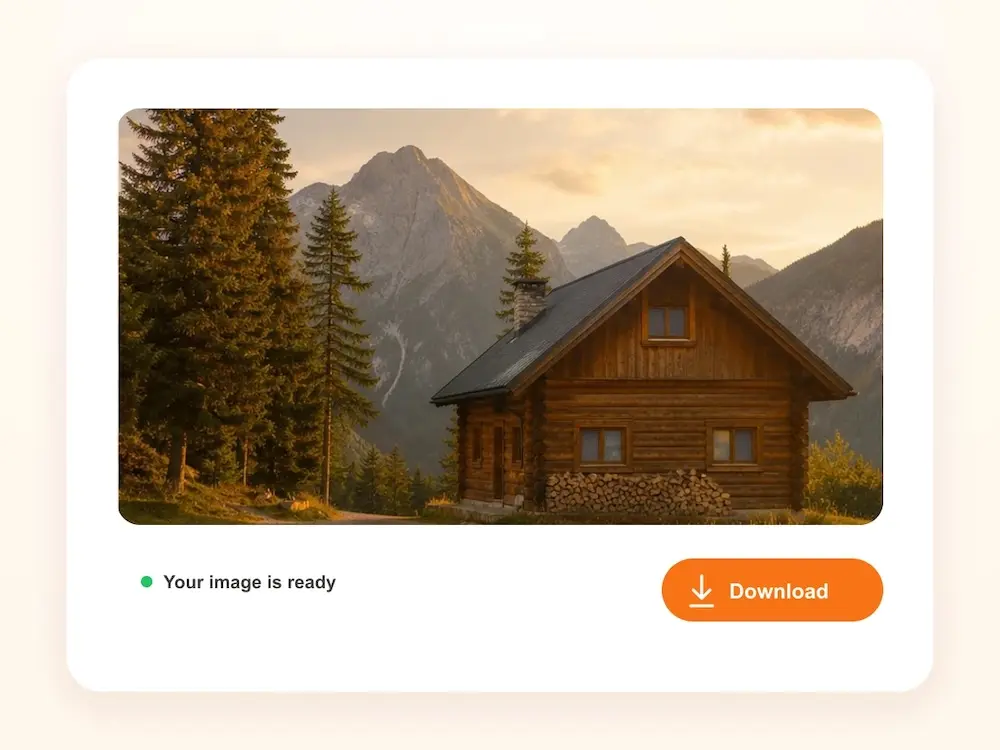
Preview and download
Preview the result, refine your instructions if needed, and download the finished image when you are happy with it.
Photuneer AI Image Editor FAQs
Photuneer AI image editor agent uses AI to understand an existing image and apply changes described in everyday language. You can upload a photo, explain what you want to change, and create an edited version without working through a long list of manual tools.
Yes. Upload a photo and describe the change you want, such as removing an object, replacing the background, adding a detail, or trying a new visual style. The source image stays at the center of the editing workflow.
You can remove unwanted objects, add new elements, change backgrounds, restyle a scene, refine a portrait, or combine ideas from several reference images. Results depend on the source images, prompt, and AI model you choose.
Start with a clear, high-quality image and describe the specific change you want. Mention what should change, what should stay the same, and any important details such as lighting, composition, color, or style. If the first result is not quite right, simplify or refine your prompt and try again.
Yes. You can use a generated result as the starting point for another edit. Describe what you want to keep and what you want to adjust, then generate a new version to refine the image step by step.
The source image guides the edit, but results can vary depending on the image, prompt, and AI model. For better consistency, clearly describe the details that should remain unchanged and use a clean reference image where the subject is easy to identify.
An AI image generator creates a new image from a text prompt. An AI photo editor starts with an existing image and applies the changes you describe, making it useful when you want to preserve a particular subject, product, composition, or visual direction.
You can upload up to 10 JPG, PNG, or WEBP images for one edit, with a maximum file size of 10MB each. Multiple references are useful when you want to combine a subject, product, setting, or visual direction in one result.
Yes. You can use the AI photo editor in a modern mobile browser to upload images, describe your edits, generate results, and download them. A larger screen may be more comfortable when working with several references or reviewing fine details.
Yes. The AI photo editor is free to try after signing in, so you can try the editing workflow before purchasing a plan. Free downloads include a watermark; paid options provide additional credits, member features, and watermark-free downloads.
Your uploads are not made publicly accessible or shared with other users by default. They are processed to create the edits you request and may also be used to analyze and improve the service.
Yes. Images created with a paid plan can be used for commercial purposes. You are responsible for making sure you have the necessary rights to the content you upload and that your use of the result follows applicable laws.
Ready to edit your next photo with words?
Open Photuneer AI image editor, upload a photo or reference image, tell your agent what to change, and keep refining the result in the same conversation.